How to Review Responses
Audience: Archivists — people reviewing voice, video, and text memories submitted by contributors.
Once contributors start submitting their memories, you can review everything from the Responses tab. This guide covers the table layout, playing recordings, managing statuses, and bulk-reprocessing errors.
Step 1 — Open the Responses Tab
From your batch detail page, click "3 — Responses" in the progression stepper.
📸 [SCREENSHOT: Batch detail page with Responses step selected — response table visible]
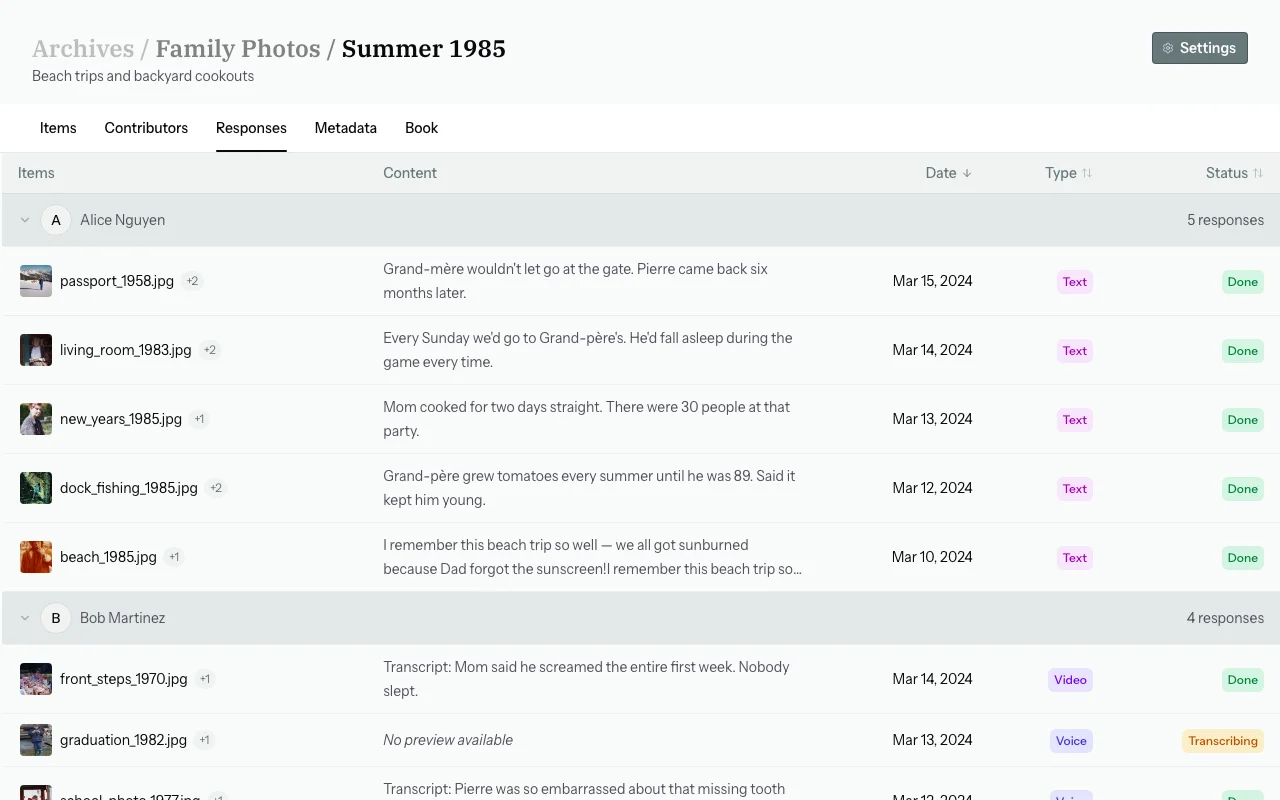
Understanding the Responses Table
The Responses tab displays a sortable table — one row per submitted response. Click any column header to sort.
| Column | Description |
|---|---|
| Items | Filename of the first covered item + "+N more" badge if the response covers multiple items |
| Content | 2-line transcript or text preview |
| Type | Voice / Video / Text badge |
| Duration | Length (voice and video only) |
| Status | Current pipeline state |
| Submitted | Date/time of submission |
Opening a Response
Click any row to open the response drawer on the right. The drawer shows:
- Full transcript
- Extracted metadata (date, location, people, tags)
- Audio or video player
- Actions (Reprocess / Delete)
Playing Audio or Video
With the drawer open, press Space (when not in a text field) to play/pause the audio or video. Or click the play button directly on the player.
📸 [SCREENSHOT: Response drawer open with audio player visible]
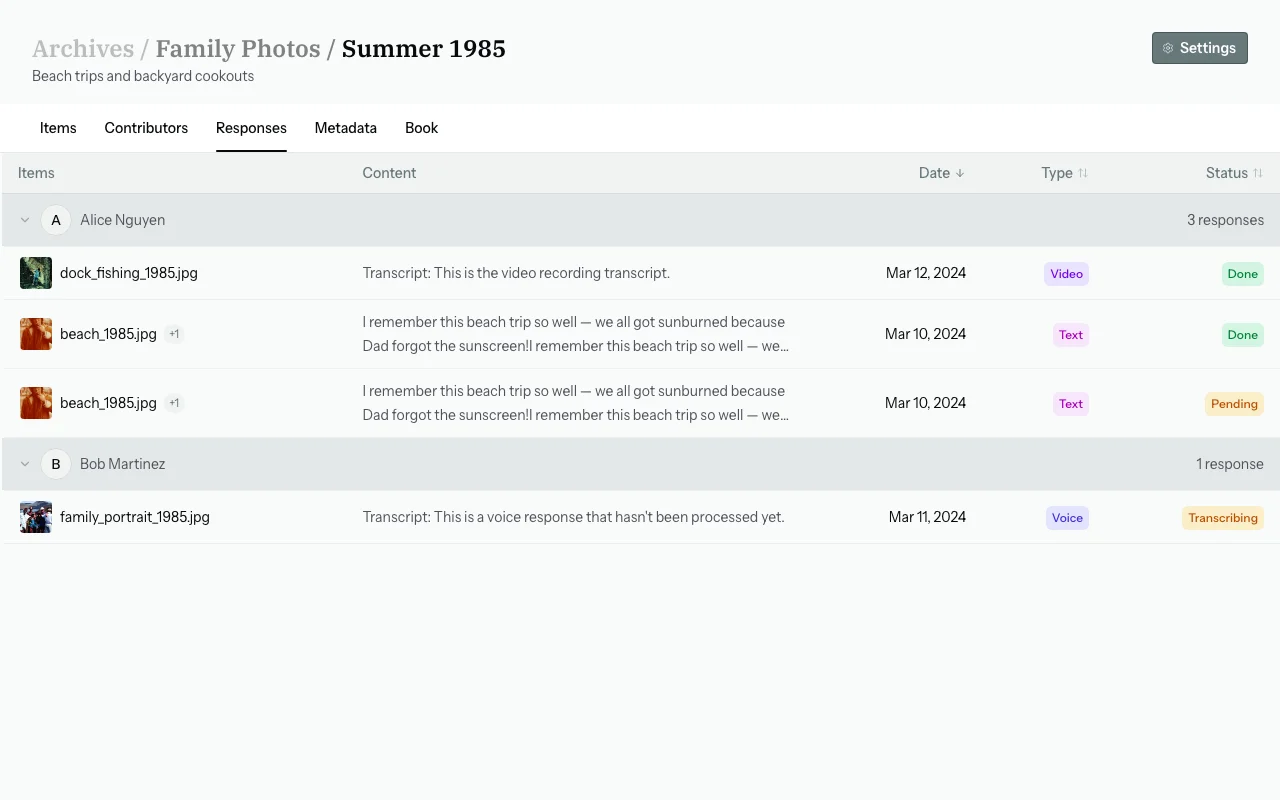
Processing Statuses
| Status | Meaning |
|---|---|
| Pending | Queued — not yet started |
| Transcribing | Speech-to-text in progress |
| Extracting | AI metadata extraction in progress |
| Processing | Final pipeline step |
| Done | Complete — transcript and metadata available |
| Error | Failed — can be reprocessed |
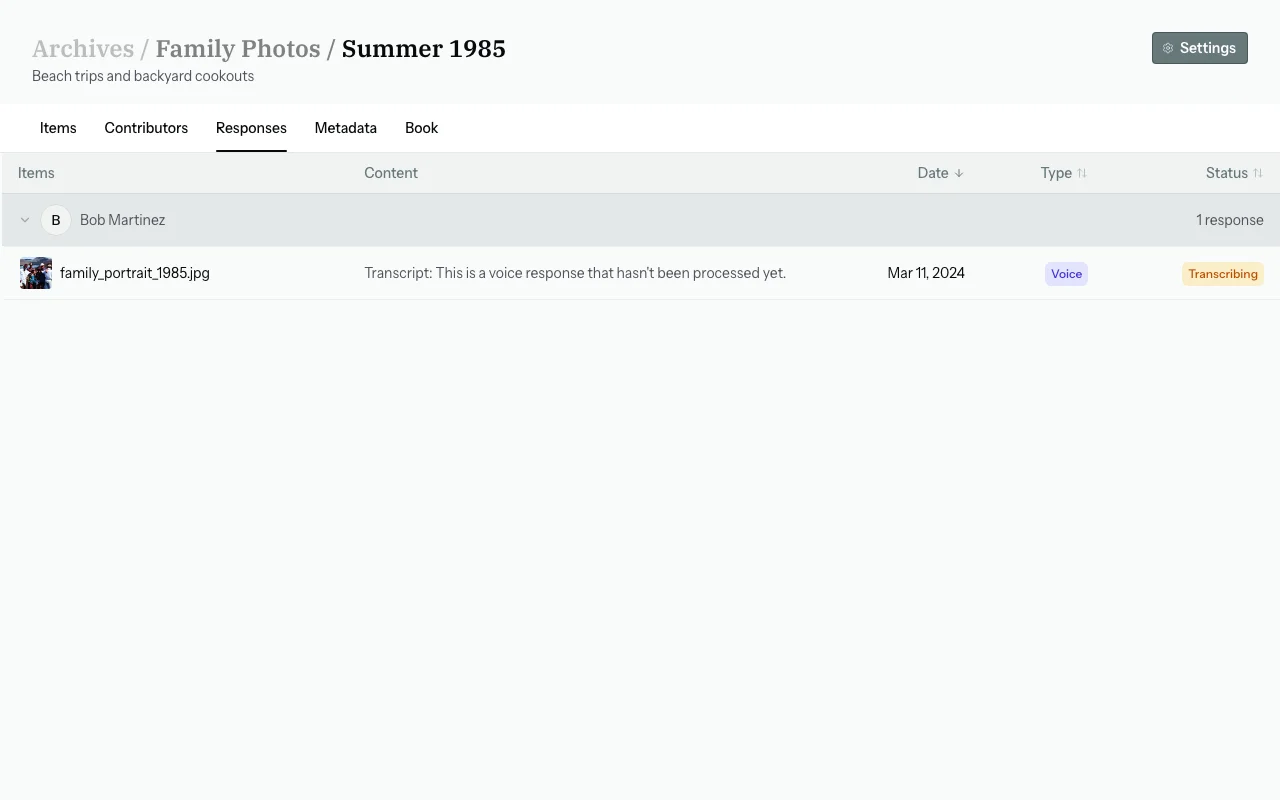
Reprocessing a Response
If a response shows Error status, or you want to re-run the extraction:
- Click the row to open the drawer.
- Click "Reprocess".
To reprocess all errored responses at once, use the Options → Retry all errors button in the nav actions.
Deleting a Response
- Open the drawer.
- Click "Delete" and confirm.
⚠️ Deleting removes the transcript and extracted metadata. This cannot be undone.
Common Questions
How long does processing take?
Voice and video typically complete in 30–120 seconds. Text responses are faster (under 30 seconds).
A contributor says they submitted but I can't see it.
Check if the response is still processing. It can take a few minutes to appear. If it's been more than 10 minutes, ask the contributor to re-submit.
Can I download the audio files?
Bulk download of raw audio is not currently available in the UI. Contact support for archival access.