Contributor Guide
Audience: Contributors — family members or friends who have been invited to share memories about a collection of old photos.
Welcome! Someone who cares about preserving family history has invited you to help. All you need to do is look at some photos and share what you remember — names, dates, places, stories. Even a little bit helps.
You do not need to create an account. You do not need to download anything.
Table of Contents
- What Is Zeuge?
- Getting Started
- The Welcome Screen
- Choosing How to Share
- Voice Narration — Speaking Your Memories
- Video — Recording Yourself on Camera
- Writing Your Memories
- Moving Between Photos
- Covering Several Photos at Once
- When You Are Finished
- Coming Back Later
- Your Privacy
- Troubleshooting
What Is Zeuge?
Zeuge is a private website for preserving family stories. Someone has digitised old family photos and invited you because you know things about those photos that no one else does — names, dates, places, stories. Even rough details help.
There is no right or wrong way to contribute. Anything you remember is valuable.
Getting Started
What You Need
- The invite link — a web address the organiser sent you, something like
https://zeuge.io/c/abc123xyz - A phone, tablet, or computer
- An internet connection
What You Do NOT Need
- An account or password
- Any app download
- Any special technical skill
Works in Safari, Chrome, Firefox, and Edge.
The Welcome Screen
Open your invite link and you will see a welcome screen.
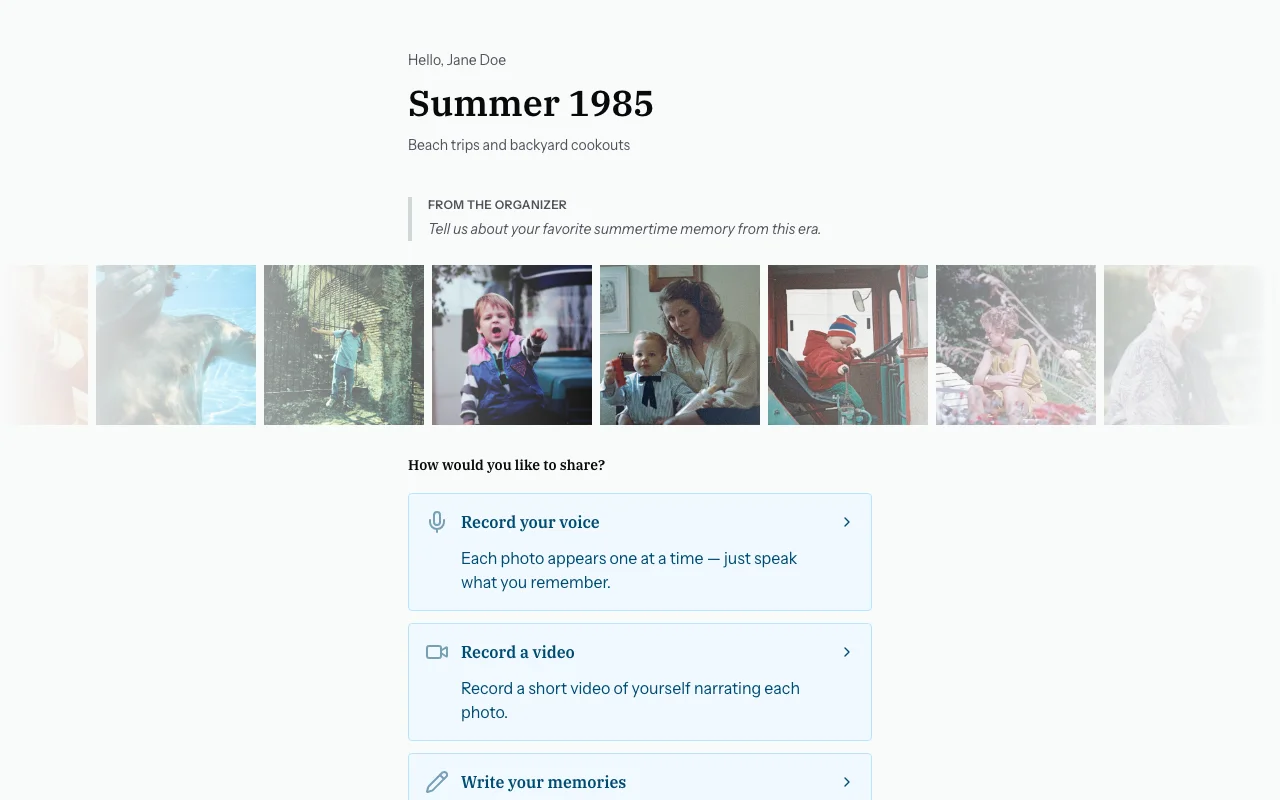
You will see:
- Your name at the top — "Hello, Carol!" — the organiser entered your name when they set up your invite.
- The name of the collection — for example, "Johnson Family Photos 1960–1990".
- A message from the organiser (if they wrote one) — shown in italics, for example: "Please share anything you remember about the people and places in these photos."
- A row of photo thumbnails — a preview of what is in the collection.
- Buttons to choose how you would like to share your memories.
Choosing How to Share
From the welcome screen, choose one of three ways:
| Option | What it is |
|---|---|
| Voice narration | You speak aloud while each photo is shown to you. Recommended — easiest and fastest. |
| Video | You record yourself on camera while talking about the photos. |
| Write your memories | You type notes about each photo. |
Tapping "Voice narration" or "Video" takes you to a second screen where you choose between them.
Voice Narration
This is the easiest option. You simply talk about each photo and Zeuge writes down what you say automatically.
How it works
- Tap "Voice narration" on the welcome screen.
- On the next screen, tap "Voice narration" (to record audio only).
- Your browser will ask for microphone permission — tap Allow.
- The photo carousel opens. One large photo fills the screen.
- Tap the record button to start. Speak what you remember.
- Tap the button again to stop. The recording is saved.
- Move to the next photo and repeat.
- When done, tap "Done".
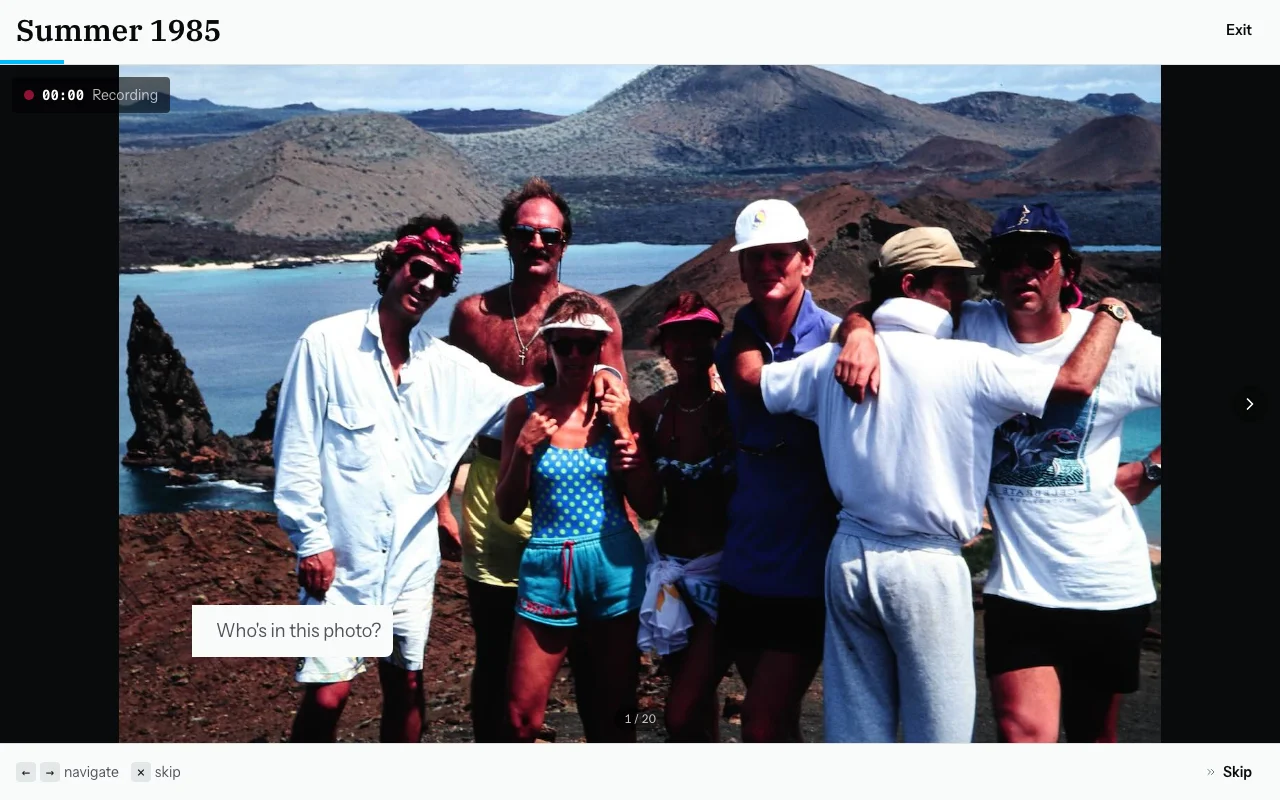
Tips
- You do not need full sentences. "That's Grandma Helen, maybe the 1960s, somewhere in Ohio" is perfect.
- Mention names, dates (approximate is fine), places, and any stories you know.
- Skip a photo if you do not recognise it — just move on.
- You can go back and re-record any photo.
Video Narration
Same as voice narration, but the camera also records your face. Some families treasure this — it captures your expressions and presence for future generations.
How it works
- Tap "Voice narration" on the welcome screen.
- On the next screen, tap "Video".
- Allow both microphone and camera access when asked.
- The photo carousel opens with a small camera preview so you can see yourself.
- Record and navigate just like voice narration.
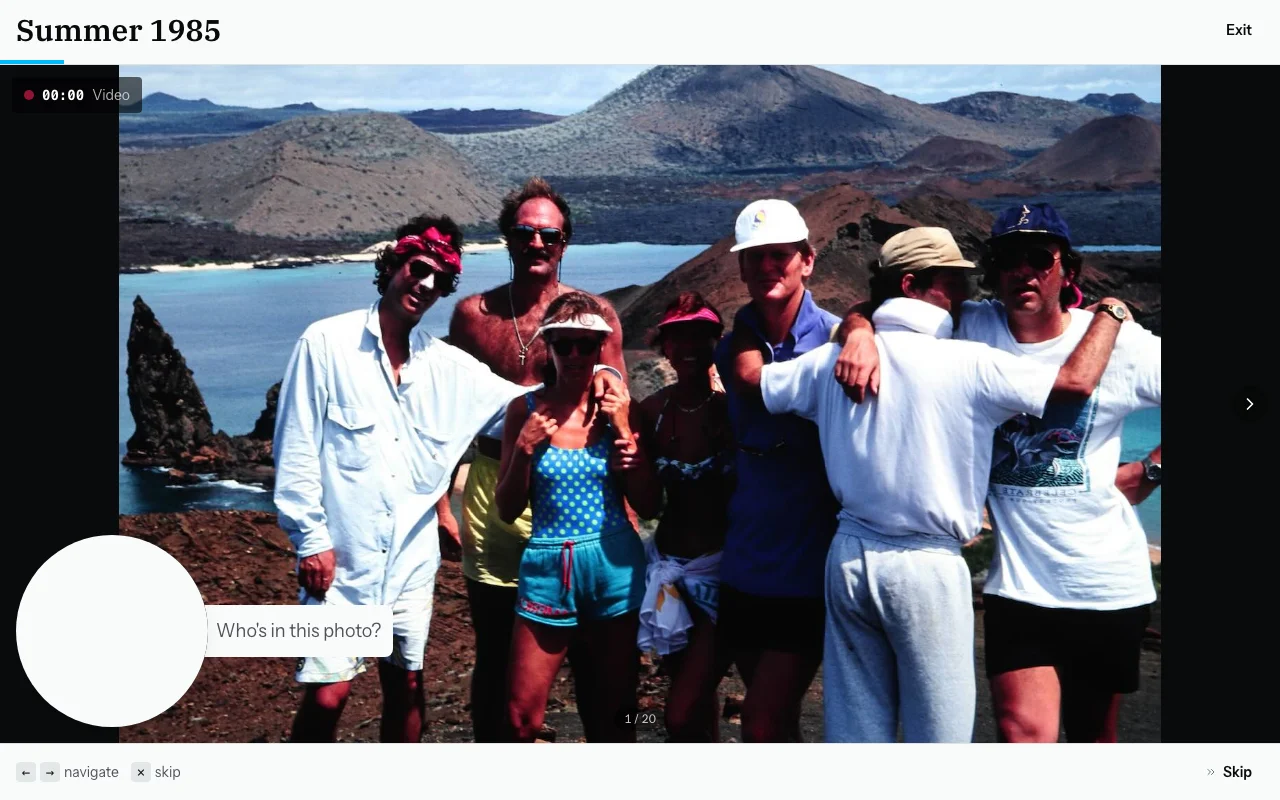
Tips for video
- Sit facing a window or lamp so your face is clearly lit.
- Do not sit with a bright window behind you — it will darken your face.
- A phone propped up on a table works perfectly.
- 30–90 seconds per photo is plenty.
Writing Your Memories
Prefer to type? Choose "Write your memories" on the welcome screen.
How it works
- Tap "Write your memories".
- A strip of photos appears on the left. Tap any photo to select it.
- A text box appears on the right. Type what you remember.
- Tap "Save" (or press Enter). Your note is recorded.
- Select the next photo and repeat.
- When done, tap "Done".
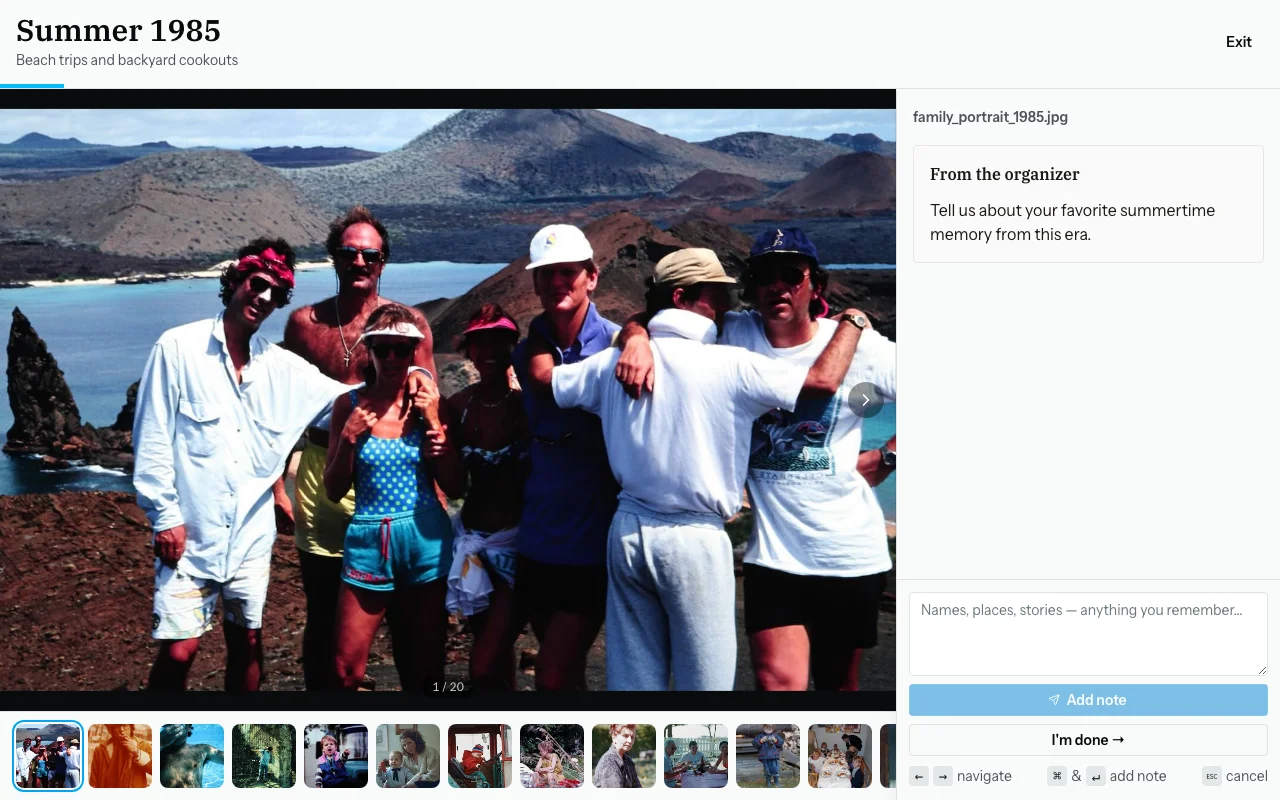
What to write
- Names of people in the photo
- When or where it was taken (approximate is fine — "mid-1970s" or "at the beach house" is great)
- What the occasion was
- Any stories or memories that come to mind
Moving Between Photos
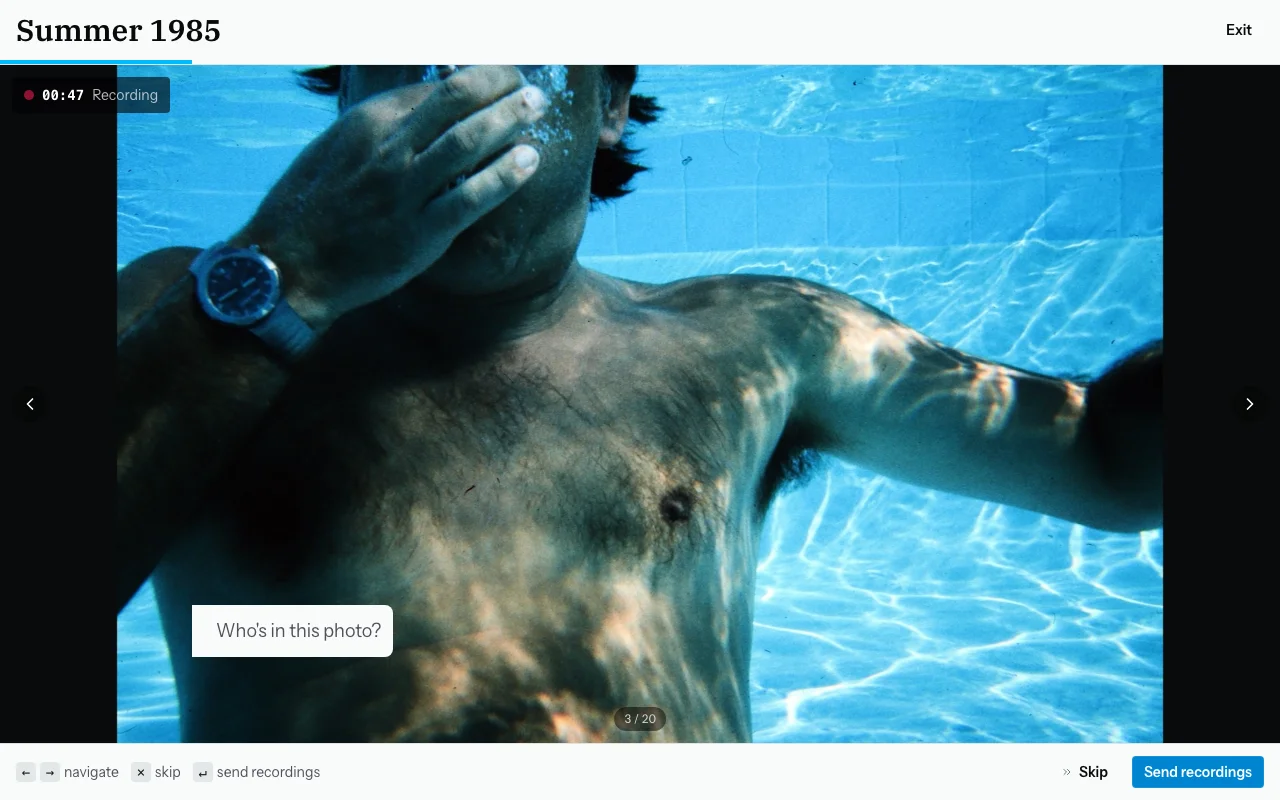
In voice and video mode, photos are shown one at a time in a carousel.
| Control | What it does |
|---|---|
| → arrow button | Next photo |
| ← arrow button | Previous photo |
| Arrow keys on keyboard | Same as buttons |
| Record button | Start or stop recording |
Photos you have already recorded show a green indicator. You can go back to any photo freely — you do not have to go in order.
Covering Several Photos at Once
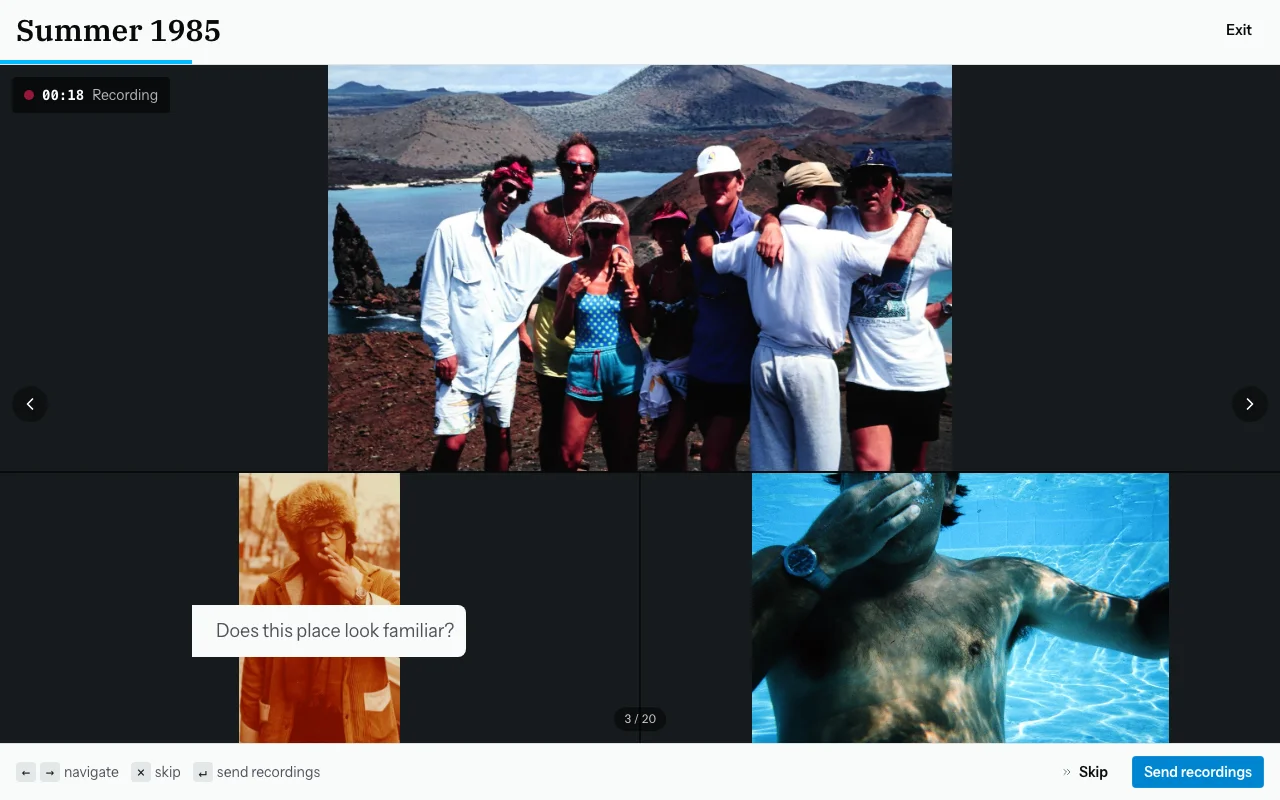
If several photos are all from the same event, you can record one response that covers all of them:
- Hold Shift on your keyboard and click the extra photos you want to include. (On a phone, look for a "Select" option or long-press a photo.)
- You will see a badge showing how many photos are selected.
- Record as usual — the one response will be linked to all selected photos.
Example: You have five photos from a birthday party. Select all five, then record: "These are all from Grandma Helen's 80th birthday party at the farm in 1987."
When You Are Finished
- Tap "Done" when you have covered everything you want to share.
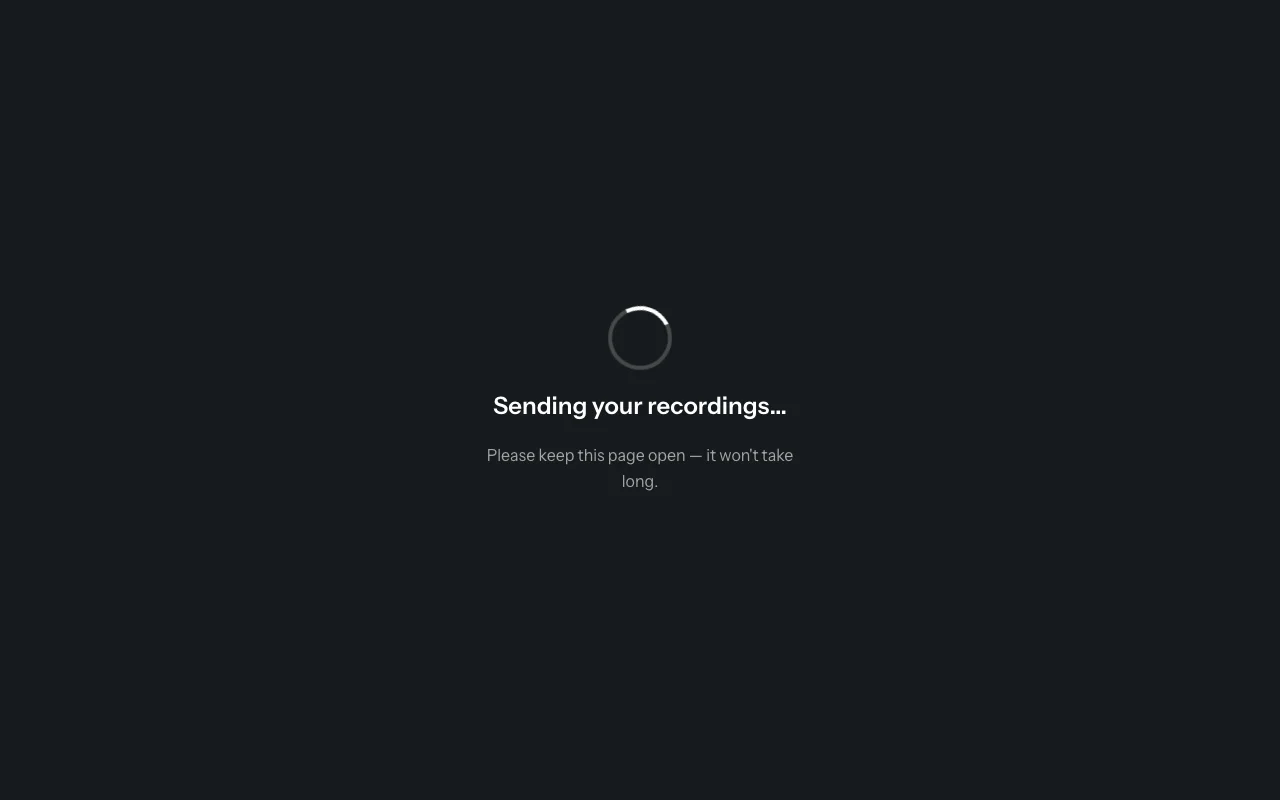
- A "Sending your recordings…" screen appears briefly while your responses are uploaded.
- A "Thank you!" screen will appear confirming your contribution.
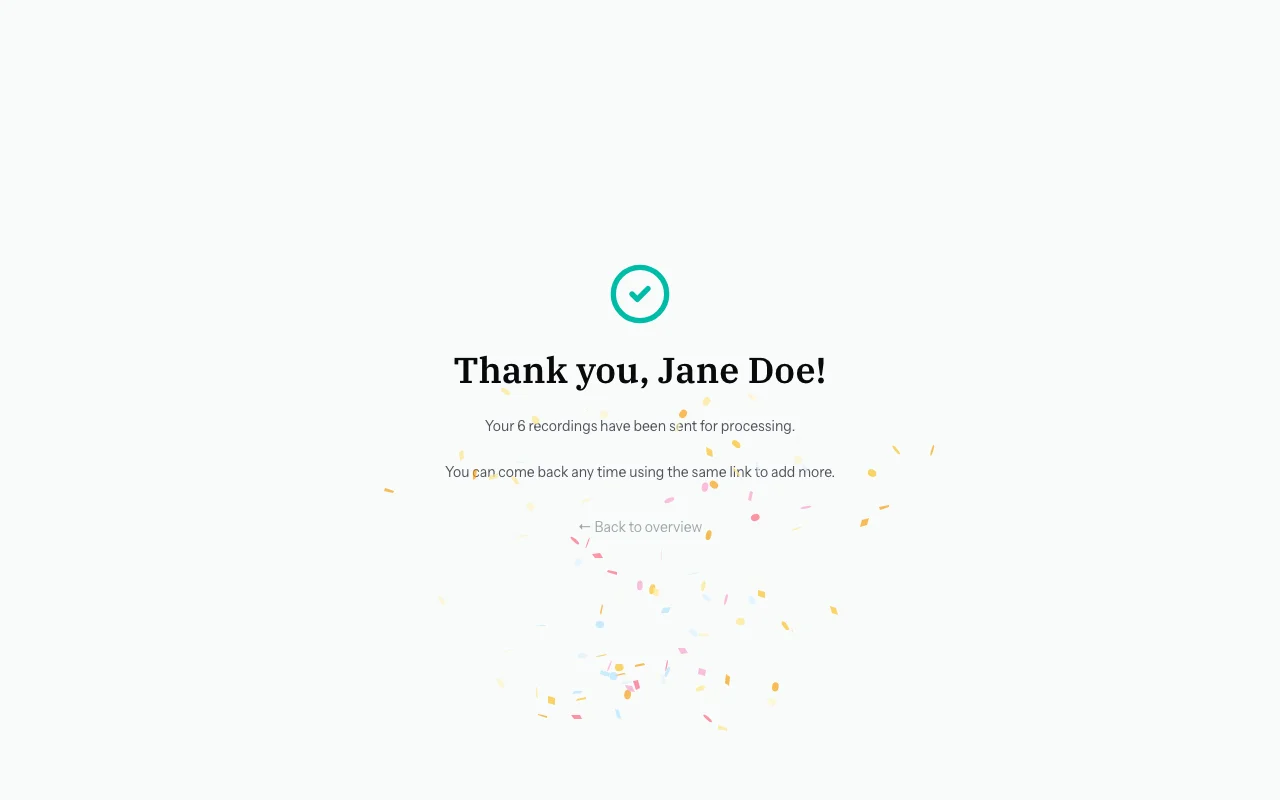
Your responses are now with the organiser. You can come back any time to add more.
Coming Back Later
You can return to the same invite link at any time to add more memories.
- Same device: Open the same link. Your session is remembered.
- Different device: Open the same link. Your previous recordings are saved, but the photos may not show as "done" in the carousel — that is normal. Your memories are still safely stored.
See Resuming Your Session for more detail.
Your Privacy
- Only the organiser can see what you share. Nothing is posted publicly.
- You are not creating an account. No profile, no social features.
- Your link is unique to you. Do not share it — each person invited gets their own link.
- Audio and video are stored securely in private cloud storage.
Troubleshooting
"My microphone is not working"
- Make sure you tapped Allow (not Block) when the browser asked.
- On iPhone/iPad: go to Settings → Safari → Microphone → Allow.
- On Android: tap the padlock icon in Chrome's address bar → Microphone → Allow.
- Try a different browser if it still does not work.
"The page will not load"
- Check your internet connection.
- Try refreshing (pull down on mobile, or press F5 on a computer).
- Try a different browser.
- Make sure you copied the whole link — invite links can be long.
"My invite link says it has expired"
Contact the person who sent you the link. They can send you a fresh one.
"The page says the collection is closed"
The organiser has paused contributions. Contact them if you think this is a mistake.
"I submitted something by accident"
Contact the person who invited you. They can remove or correct individual responses.